Showing posts with label Tips and Tricks. Show all posts

Sunday, March 28, 2021

Read more option is not working in blog post?


Read more is not working in blog post?

Or
 Insert jump break is not working in blog post ?

Before proceeding with this method make sure to follow the steps properly. 

Ok now go to setting and scroll down Find the "Manage Blog" 


option and click back up content its will ask you to download "The content backup includes posts, pages and comments.-Download it and keep it in Safe Drive, Don't keep it C Drive because C is windows drive and it can be format any time so you may lost your back up.
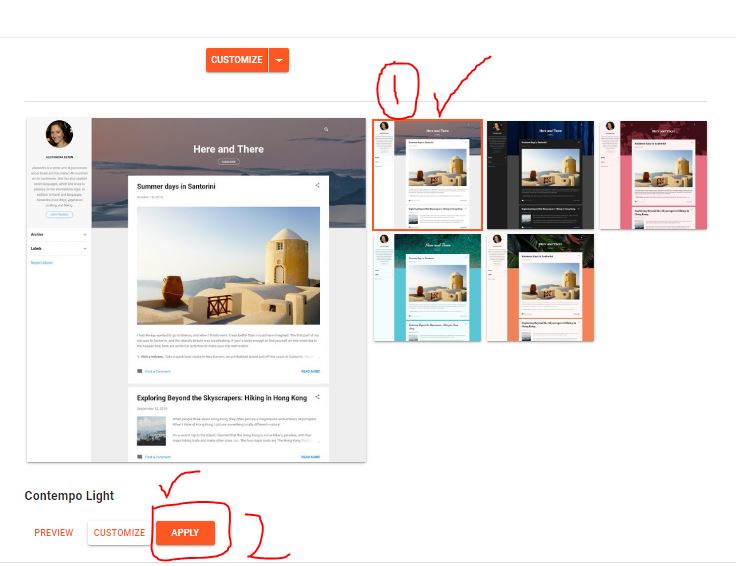
Ok now go to theme option and click on drop down menu attached with CUSTOMIZE option


 and click on theme backup


 backup of your theme will be download, this is your current blog's theme setting incase your new theme you don't like or have any issue so you can recover back your old theme. 
After this now select any theme under the CUSTOMIZE button 


and simply Choose any themes in"CONTEMPO" themes. Ok now refresh your blog 

continue reading

 option will appear under the down right side of post.
your problem is solved. 
With This method you will new look of new theme also and you change the theme any one you want but keep follow the steps of backup before changing any theme,
and its my advice that try to don't install codes and plugin of third parties because you don't know how some one can steal your personal data by this way.
and also your blog is like your online business shop, same like in real life if you have shop or company on blog you can earn money in many ways, like affiliate programs, amazon affiliate, like google ads, if you know some seo tips and  you can run your blog well and have more terrific you can direct offer to company for run their ads on your blog for this they will pay you.

Remember, This solution is my personal research, In the whole Internet you can't not find solution like this for this problem because i search whole you tube and google search but could not found solution,
Thank you very much for visiting my website .
 Allahu Akbar .
take care 

Wednesday, March 13, 2019

How to Remove Read More or Jump Break Link in blog post


 Follow below procedure step by step carefully,
  1. Go to Blogger > Design > Edit HTML
  2. Backup your template
  3. Click the "Expand widget Templates"  Box
  4. Press Control Button + F 
  5. Search Box will appear on upper right side of html theme
  6. in the search box write below single command,
         <data:post.body/>


When you press Enter button you will see below commands just select and delete.

        <b:if cond='data:post.hasJumpLink'> <div class='jump-link'>
        <a expr:href='data:post.url + "#more"'><data:post.jumpText/></a>
        </div>
          </b:if >

Mthood Number 2.

Go to your post click edit, open post click in the end of  the post's  last word.

Now click on ' insert Jump Break '  and click update.
Now your JUmp break Or read more option will disappear.

there is also third option to remove jump break from post html.
next time i will share until you can try these methods,


Saturday, September 8, 2018

Root android mobile without computer with one click root apk


Root android mobile without computer with one click root apk
Note: If you don't know about android root so please read article on whats are advantages and what
are disadvantages of root.
After when you clean in your mind what you gonna do so follow up rooting process.
with this software its very easy to root your mobile. just watch video complete.

Root android mobile without computer with one click root apk
Software download link...


Monday, September 3, 2018

Should You Shut Down, Sleep, or Hibernate Your Laptop?


Should you shut Down, Sleep,or Hibernate Your Laptop?


Shut Down, Sleep, Or 
Hibernate Your PC

There are various approaches to close down your pc—that you can flip the pc off thoroughly, you can make it sleep, or you could hibernate the pc.

Flip your pc off thoroughly
to shut down:

For home windows 10 decide upon   and then pick vigor > Shut down.
For home windows eight.1 / windows RT eight.1 transfer your mouse to the slash left-hand corner of the screen and proper-click on the start  button or press home windows emblem key + X in your keyboard. Faucet or click Shut down or sign out and prefer Shut down.
For home windows 7 click the start button  and then click on the Shut down button.

Sleep


This uses very little vigour, your computer starts up rapid, and you’re instantly again to where you left off. You don’t need to worry that you can lose your work seeing that of your battery draining, due to the fact that windows routinely saves all your work and turns off the pc if the battery is just too low. Use sleep whilst you’re going to be away from your pc for just a little whilst—like while you’re taking a espresso destroy.

For a lot of PCs (especially laptops and tablets), your pc goes to sleep when you close your lid or press the vigor button.

To make your laptop sleep:

Open energy options:
For windows 10, opt for begin , then opt for Settings  > approach  > power & sleep  > additional power settings.
For home windows eight.1 / home windows RT 8.1, swipe in from the threshold of the reveal, tap Search (or if you are utilising a mouse, factor to the higher-correct corner of the display, transfer the mouse pointer down, after which click on Search), enter energy choices within the search box, after which faucet or click vigor options.
For home windows 7, click on the begin button , click control Panel, click approach and protection, and then click vigor choices.

Should you shut Down, Sleep,or Hibernate Your Laptop?

Do probably the most following:
in case you’re utilizing a laptop, tablet, or desktop, decide on choose what the energy buttons do. Next to when I press the vigour button, prefer Sleep, and then prefer keep alterations.
In the event you’re making use of only a computer, decide upon decide upon what closing the lid does. Next to when I shut the lid, decide upon Sleep, and then prefer save alterations.
When you’re in a position to make your computer sleep, simply press the vigor button to your computer, pill, or computing device, or close your computing device’s lid.
On most PCs, which you can resume working by way of pressing your pc's vigour button. Nevertheless, now not all PCs are the same. You might be able to wake it via urgent any key on the keyboard, clicking a mouse button, or opening the lid on a computer. Examine the documentation that came with your pc or go to the brand's internet site.

Hibernate

This option was designed for laptops and might no longer be to be had for all PCs. (For illustration, PCs with InstantGo shouldn't have the hibernate choice.) Hibernate makes use of less vigour than sleep and when you start up the computer once more, you’re again to the place you left off (although no longer as quick as sleep).

Use hibernation when you be aware of that you will not use your computer or pill for an improved period and will not have an possibility to charge the battery in the course of that time. First examine to peer if this choice is to be had to your pc and whether it is, turn it on.

To hibernate your computer:

Open power options:
For windows 10, select start , then choose Settings  > procedure  > vigour & sleep  > additional vigor settings.
For home windows 8.1 / home windows RT eight.1, swipe in from the brink of the screen, tap Search (or if you're utilising a mouse, point to the higher-proper corner of the reveal, transfer the mouse pointer down, after which click on Search), enter power options within the search field, after which tap or click on vigour options.
For Windows 7, click the Start button , click the arrow next to the Shut down button, and then click Hibernate.

Note:
If devices connected to your PC (like monitors, printers, or scanners) aren't working properly after waking up from sleep or hibernate, you might need to disconnect and reconnect your device or restart your PC. You should also make sure that you have the most current drivers for all of your devices.

Wednesday, August 29, 2018

The easiest way to save your battery power


 Tips to Boost Your Android Phone's Battery Life


The easiest way to save your battery power

So here are a few tips that will help extend the life of your phone. Turn down the screen brightness. By diming the screen of your smartphone, you will notice an instant change in battery life. Turn off Wi-Fi and Bluetooth. Close any unused or running apps. Disable location services. Switch to Airplane mode

If you choose a black or simple dark background for your screen,the automatic pixel highlighting
 will turn off, and you'll notice that your device keeps its charge for much longer.This feature isn't available for all Android
devices yet,but its already implemented on most Samsung smartphones and tablets.
i hope this article about ,
The easiest way to save your battery power 
will help you to extend your mobile battery life.

Learn more about Connectivity Hotspot's


setup Mobile Hotspot mode
how to connect Hotspot 
Hotspot mode

Learn more about Connectivity Hotspot's great premium features including, 3G/4G Sharing, WiFi Repeater Mode, Custom Hotspot Naming, and more

No, this is not going to show you where the best dance club is. Its about internet
access!You need buy a separate 3G modem or a router to use the internet on different devices, because your smartphone can do
this easily!Go to Settings, Tethering and portable hotspot, and turn on portable WLAN hotspot. Thatsit!
This was short info about,
Learn more about Connectivity Hotspot's

Learn how to make items on the screen appear larger by using Magnifier


select the top best screen magnifier for you
for weak eye sight people


Screen Magnifier

screen magnifier is software that interfaces with a computer's graphical output to present enlarged screen content. By enlarging part (or all) of a screen,

People with poor eyesight often have no idea how much this feature can help
them! Just go to Settings,Accessibility,Magnification gestures,then youll be able to zoom in on any part of the display just
by tapping it.
This was about Learn how to make items on the screen appear larger by using Magnifier.
hope fully its will work out for you friends.

How to use guest mode on your Android phone


once you turn on gest account your data is inaccessible to the guest user
secure android


Turning on guest mode

When you need to lend your phone to a friend for a while, you can quickly switch toAndroid guest   mode

If you would like to give your phone to another person, yet keep
 your personal data confidential, use Guest mode.Swipe down from the top with two fingers and touch the user icon on the upper
 right.The Add guest icon will appear, and you'll be able to choose which actions the person handling your smartphone will be
 allowed to take.

How to use guest mode on your Android phone

Smartphone remote control

Smartphone remote control


Smartphone remote control

Just go to Settings, then Security,then
Device administrators,and check the boxes next to Android Device manager.Remotely locate this device and allow remote lock
and erase.Now if you will lose your smartphone, you can locate it and block it without losing your data via a special website.
 Well, that pretty cool.

Professional text to speech program that converts any written text into spoken words


Google Cloud Text-to-Speech enables developers to synthesize natural-sounding speech
Text Speech


Text-to-speech

The most comprehensive text-to-speech reading app online. Free for unlimited use. Generate speech and listen to texts, pdfs, ebooks & websites

Not only can you read this article, but you can also listen to it, if you
have an Android device.So, if you prefer to hear incoming information, rather than see it, go to Settings,then Accessibility,
and turn on the Text-to-speech output option.

It was small introduction of  professional text to speech program that converts any written text intospoken words

Smartphone battery saver app


 how to extend your phone's battery life
Battery Saver apps
 It will keep your phone battery going for longer
 Control your smartphone with head movements.There are situations
 where you just have to use your gadget, but your hands are otherwise occupied,or its just too
 cold outside to take your warm gloves off. However, there is a solution for this.After installing a free  app called EVA facial
 mouse,You will be able to control your Android device with movements of your head. Sound impossible?Well, give it a try and see
 the result for yourself

we recommend you this,
Smartphone battery saver app 

EVA facial app download link

Saturday, August 25, 2018

A quick and simple fix for a slow device


 simple way to fix slow android device
Slow Mobile


 Major tips for how to fix Slow Android Phone

Whether you are using a flagship device or a
 budget smartphone you have at least once experienced lags on your phone and its not a good feeling.Apps takes
 too much time to open up, sometimes the whole Operating system crashes, it is such a mess
toady I will give you some tips to speed up your
android phone
just update your phone”,i’m only trying
to roast people who don't update their phone even if they have an OTA update available.It just blows my mind that
some people still believes that updating the android version will make the phone slower.Guys if you are one of them,
it is such a lie and a myth, The only way you are gonna get a bad experience after the update is if the newer
version has some bugs, but the chance of that is very low because these versions are tested by hundreds of users
 before itis pushed out to the public.So please update your phone ,Speaking of newer android version; If you want
to run a newer android version and you don’t have the update available , then root your device and flash a custom rom
 based on a newer android version.It is so easy.Just google it.

 A quick and simple fix for a slow device 

Laggy Android Devices And How To Fix Them

apps Running in background May slow down the device
laggy  smartfone


Use lightweight launchers like nova or pixel launcher or any other similar ones

 Those will keep your phone safe
 from lags,If none of this seems to make a difference on your phone,Then factory reset your phone or root your device
 and flash a custom rom with a custom kernel having some neat features,and your device will be as good as the new one.

And i’m pretty sure some of you will ask me whether overclocking works or not, the short answer No, but it can make a
difference, a slight difference, And overclocking your CPU will drain your battery so fast , so overall it is not a good

Article about, Laggy Android Devices And How To Fix Them

Speed up android by Remove or Reduce Widgets

app for your Android phone or tablet optimizing a lot of things on your device
speed up smartphone

Common thing 

 that i see a lot of people using are widgets, especially those widgets on the notifications, i use
zoo per widgets a lot,But They don’t consume not as much as memory and battery power as some other apps, so if you
 want your phone to run smoothly, reduce the no of widgets that you have on your home screen and on your notifications,
 Widgets are cool, but don't overuse it.

Speed up android by Remove or Reduce Widgets

Is your Android running slow? Here are some easy ways to bring your device

the right thing and you can speed up your Android
android hang problem


 Common reason for the leggy experiences
Is your Android running slow? Here are some easy ways to bring your device

That is use of crappy apps, like battery savers, cleaners, speed booster
and bloatware.I advise you to not use these apps, especially cleaners and speed boosters, The main problem with
these apps is that it runs in the background for no reason, and it utilizes a lot of the CPU and memory. Another
 thing is that ;when you clear up the ram and open the application that was previously in the background, it need
to be loaded up
 again, because it is not in the RAM.Which will make the phone even slower, So don't do it.And the battery
 saver apps, they don’t do any magic, what all of these battery saver apps do is ;they turn down the brightness
and disable bunch of things, why you need a special app for that ? when you can do that in a matter of seconds
 or use the battery saver that comes with your phone.I totally get the reason why some people use junk cleaner
 apps, i use a junk cleaning app too but i don’t use an app just for that, you know what i mean, find some app
 that has this as a feature and does not run in the background, i use es file explorer it is my go to file manager
 and it has junk cleaning feature in it.Bloatware is another problem, to get rid of the apps that were in your
phone since the start; you need root access, if you do, use this app system app remover” and get rid of the useless bloatware.And if you don't have root access, force stop the applications

Friday, August 24, 2018

How to make Android faster


 How to make Android faster
Android freez


So the next one is kind of obvious

 the reason why the UI seems so leggy is when your phone has to do more than it is
 capable of, so we will try to make the phone do less things,so one of the things that we can do is reduce the
 animations, either you can completely turn of the animation or just reduce it.Change the settings on your launcher
and on your android settings----go to about phone---search for builder number click 7 time on builder number---go back see there now developer option will apear---click on developer option-- find the window animation scale defaul will 1 change it to .5x
transition animation scale default will 1 change it to .5x
animator duration scale dafault will 1 change it to .5x

this is my most experienced trick for speed of even 2.2 android will run very smoothly  like 6.0 or better than this.

Some simple tricks of, How to make Android faster
hope these all tricks will work for you.


The most effective way to speed up your phone

The most effective way to speed up your phone
smartfon problems


 Next tip is kind of useful

The most effective way to speed up your phone

Don’t force stop applications and don’t clear app cache,Force stopping apps
and clearing app cache is widely used for making the phone “ run smoothly”, But what most people don’t is , it is
actually
 doing the opposite, let me explain.The older android versions had some serious memory management issues, so that
 is why people on the forums and on the android community told each other to clear up the memory manually,but nowadays,
 Android is actually really good in memory management, so if you force stop all of the apps that you use frequently.
Then when you are gonna open these apps again, the phone has to load up all the essential files to the memory again ,
 which will consume more power and time, which will make the phone slow.But if you are gonna force stop an app,
 that you know you will not be using that often then , it is a good thing.


Why is my Android phone telling me that memory is full

Android RAM full: reason
memory full problem


Memory almost full
Why is my Android phone telling me that memory is full

That might be “the reason”
that is making your phone run slowly, I’m not
gonna get into the technical side of it, but what i’m gonna say are some tips to avoid this situation,You can always
 delete useless files, and you can also move your personal data such as photo sand videos to an external drive or to a
cloud server, Google photos works really well, there is no limit you can upload photos and videos as much as you want.
For storing documents and other files i use mega, you will get 50GB for free per account.And there is an app as well,
so it will super easy to just move files to mega from your phone.

Friday, October 9, 2015

cheap Smart phone run slow Problem solution

smartphon cheap deals
Smart phone Run slow
 
How to speed up your android mobile 100% 

Ok so go to setting >about phone> click 7 times on builder number, then go back to setting you will see, Developer options click and scroll down and search for these 3 options 1, window animation scale> select animation scale .5x 2, Transition animation scale> select animation scale .5x 3, 

Animator Duration scale > select Animation scale .5x Now go back to setting and click on storage > cached data > click Ok. Use ccleaner for daily cleaning your android mobile. You have done, now your mobile will act fast as per your finger click the feature will open .. If you have any problem please ask,  Keep visiting  More post will upload soon let me know if you need information about your having problem with.

The above article was about, cheap Smart phone run slow Problem solution
Thank you.

Thursday, October 8, 2015

Root Android without connecting to computer in one click by using King Root


root your android device
Root android


Warning:

Before starting this process please take more and more information about root advantages and disadvantages when you complete your research on this topic so after that make an option to proceed or not.

Root Android without connecting to computer in one click by using King Root
 The experience about rooting mobile i am sharing with you actually it is personally i used
 100% secure and worked
 for me, So lets start Rooting method , First of all download king root software from given link below,,

download king root app here..

 After download the app install it on your android device, after that open it you will see there is an icon in Japanes language , on that icon of app you will also see written"" Root "" just click on root button and let the mobile free for some time when its will complete the root process , so the app will show you a sign of done ( √ )

Now your mobile is rooted. Enjoy. I have much more knowledge about mobile Tricks with a time i will share that all.just keep visiting my site .

Thank you.